

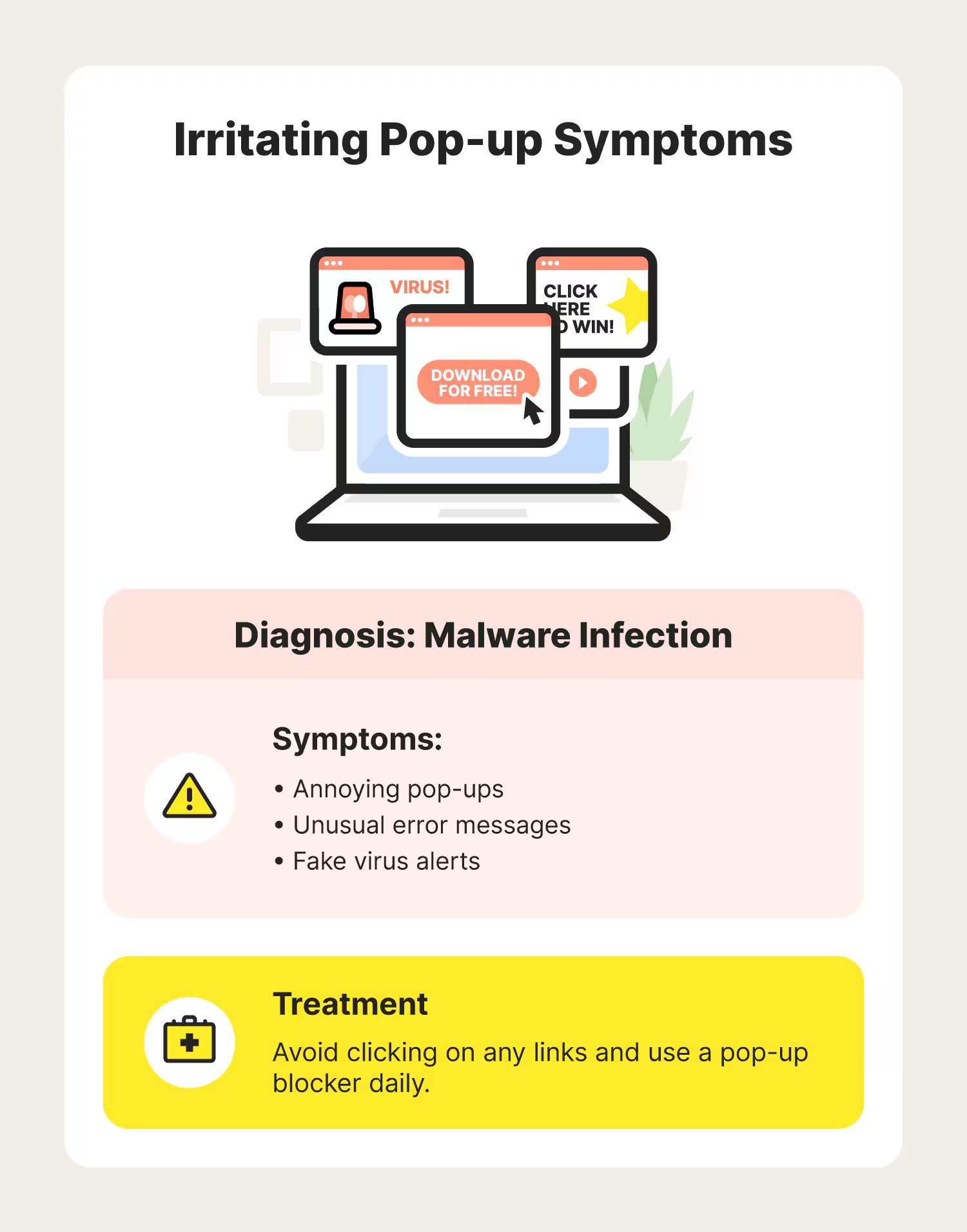
Have you noticed your browser suddenly redirecting to unfamiliar websites, showing intrusive pop-ups, or changing your homepage without permission? If so, you may be dealing with a browser hijack—a common but serious security issue that affects individuals, teams, and entire organizations.
A hijacked browser is more than an annoyance. It can lead to credential theft, malware infections, ad fraud, data exposure, and compliance risks—especially in corporate environments where browsers are the gateway to cloud apps, internal systems, and financial platforms.
This guide explains browser hijacker removal in a clear, professional way. You’ll learn how browser hijackers work, how to detect them early, and the safest ways to remove them from Chrome and other browsers. It also includes prevention measures suitable for IT teams, founders, and security leaders.
What Is a Browser Hijacker?
A browser hijacker is a type of unwanted software that modifies browser settings without the user’s informed consent. It can change:
-
Homepage and default new tab page
-
Default search engine
-
Browser shortcuts and launch settings
-
DNS or proxy configuration
-
Extensions and permissions
-
Redirect behavior and ad injection
Some hijackers are categorized as Potentially Unwanted Programs (PUPs), while others operate as part of a broader malware chain.
Why Browser Hijackers Matter for Businesses
For organizations, browser hijackers are a security signal. They indicate:
-
Weak endpoint hygiene
-
Poor control over browser extensions
-
Users installing untrusted software
-
Possible exposure to password theft or spyware
-
Increased risk of ransomware or phishing
Even if the hijacker itself is “just adware,” it often funnels users into dangerous sites and can open the door to more severe threats.
Common Signs of a Browser Hijack
You may need browser hijacker removal if you notice:
-
Your browser redirects to unknown websites
-
Your homepage or new tab page changed unexpectedly
-
Search results are rerouted through unfamiliar engines
-
New toolbars or extensions appear without approval
-
Pop-ups increase dramatically (even on safe sites)
-
The browser feels slow or behaves unusually
-
You see “managed by your organization” unexpectedly on a personal device
-
Antivirus warnings related to browser activity
If your team reports similar issues across multiple endpoints, treat it as a broader security incident.
How Browser Hijackers Get Installed
Most hijackers don’t rely on “traditional hacking.” They are usually installed through:
1) Bundled Installers
Free software packages often include “optional offers.” Users click “Next” quickly and accidentally approve add-ons.
2) Fake Updates
Pop-ups claim: “Your Chrome is outdated” or “Update Flash Player.” These install unwanted extensions or executables.
3) Malicious Browser Extensions
Extensions that promise coupons, productivity tools, or video downloads may request excessive permissions.
4) Phishing and Social Engineering
Users click links in email or messaging apps that lead to fake installers or permission-grant screens.
5) Compromised Websites / Malvertising
Ads can redirect users and trigger drive-by installs, especially on unmanaged devices.
Browser Hijacker Removal: Step-by-Step Process (Works Globally)
Below is a structured process you can use for browser hijacker removal across major browsers, including Chrome. For organizations, it also includes steps IT teams should standardize.
Step 1: Disconnect and Assess Risk
If the system is redirecting heavily or showing suspicious behavior:
-
Disconnect from the network temporarily (especially in enterprise settings)
-
Avoid logging into accounts until the system is cleaned
-
Document symptoms (redirect URLs, changes, extensions installed)
This reduces the risk of credential compromise.
Step 2: Remove Suspicious Browser Extensions (Critical)
Remove Hijacker Chrome Extensions
Chrome hijackers often live as extensions. Here’s how to remove them:
-
Open Chrome
-
Go to
chrome://extensions/ -
Review all installed extensions
-
Remove anything you don’t recognize or didn’t approve
-
Restart Chrome
Be especially suspicious of extensions with:
-
Generic names (“Search Manager,” “Safe Browse,” “Quick Coupons”)
-
High permissions (read/change all data on websites)
-
No clear publisher or reviews
-
Recently installed without a clear reason
This step alone resolves many cases of how to get rid of browser hijacker Chrome infections.
Step 3: Reset Browser Settings (Fast and Effective)
How to Remove Browser Hijacker Chrome via Reset
A reset removes hijacker-controlled settings like search engine redirects.
-
Open Chrome Settings
-
Go to Reset settings
-
Select Restore settings to their original defaults
-
Confirm reset
-
Restart Chrome
Resetting does not remove bookmarks and saved passwords, but it does disable extensions and resets key preferences.
This is one of the simplest methods for how to delete browser hijacker changes.
Step 4: Check Default Search Engine and Startup Pages
After resetting, verify:
-
Default search engine is trusted (Google, Bing, etc.)
-
Startup pages are not unknown URLs
-
New tab behavior is normal
In Chrome:
-
Settings → Search engine
-
Settings → On startup
-
Settings → Appearance
If hijackers keep returning, there’s likely a system-level component or a policy-based hijack.
Step 5: Inspect Chrome Policies (Enterprise and Advanced Cases)
Some hijackers abuse Chrome’s policy features.
-
Type:
chrome://policy/ -
Look for policies you didn’t set
-
If the device is not managed but policies exist, it may be a hijacker or a malware script
In organizations, this is usually controlled by MDM or Group Policy. For personal devices, it’s suspicious.
This step helps with how to remove a web browser hijacker that reappears after resets.
Step 6: Uninstall Suspicious Programs (Windows & macOS)
Browser hijackers often come from installed applications.
Windows
-
Control Panel → Programs → Uninstall a program
-
Sort by date installed
-
Remove unfamiliar programs
macOS
-
Applications folder → remove unknown apps
-
Check Login Items for suspicious auto-launch tools
Also check:
-
Task Scheduler (Windows)
-
LaunchAgents/LaunchDaemons (macOS)
These may reinstall the hijacker.
This is often the missing step for those searching how to get rid of browser hijacker permanently.
Step 7: Run a Browser Hijack Cleaner or Security Scan
At this stage, you should use a reputable security product to scan for:
-
Adware
-
PUPs
-
Malware droppers
-
Browser-specific threats
-
Persistence mechanisms
A browser hijacker removal tool can detect components that manual steps miss, such as hidden executables, registry entries, or scheduled tasks.
If you manage endpoints at scale, use centralized scanning and reporting to ensure consistency.
Step 8: Clear DNS, Proxy, and Network Settings
Some hijackers change network settings to redirect traffic.
Check Proxy Settings
-
Windows: Settings → Network & Internet → Proxy
-
macOS: Network → Advanced → Proxies
Disable proxies you didn’t set.
Flush DNS (Windows)
Open Command Prompt as Admin:
-
ipconfig /flushdns
In organizations, DNS hijacking can impact multiple users, so confirm the DNS server settings and gateway.
This is a key step if your users report search redirection or “internet browser virus” behavior.
Step 9: Remove Malicious Browser Shortcuts (Windows)
Hijackers sometimes change the Chrome shortcut target.
-
Right-click Chrome shortcut
-
Properties → Shortcut tab
-
Ensure the Target ends with:
chrome.exe -
Remove any URL appended after it
-
Apply changes
This helps with persistent redirect issues even after a reset.
Step 10: Verify Cleanup and Monitor for Reappearance
After cleaning:
-
Restart the computer
-
Check redirects and homepage behavior
-
Confirm extensions remain removed
-
Review browser performance
-
Run a follow-up scan after 24–48 hours
If hijack returns, it may indicate:
-
a hidden persistence mechanism
-
compromised browser sync account
-
device-level malware requiring deeper remediation
Browser Hijacker Removal for IT Managers and Business Leaders
If you’re responsible for teams, do not treat hijackers as “minor.” They are often early warning signs.
Recommended Enterprise Actions
1) Standardize Browser Security
-
Restrict extension installation
-
Use allow-lists for trusted add-ons
-
Enforce secure search settings
-
Disable risky permissions
2) Implement Endpoint Protection
Use EDR or managed endpoint security that can detect:
-
PUP installation
-
unauthorized browser changes
-
script-based persistence
-
suspicious processes tied to browsers
3) Deploy Centralized Patch Management
Outdated browsers and OS builds increase hijacker success rates.
4) Educate Employees
Short, practical training reduces install-based infections:
-
Don’t install random free tools
-
Avoid fake update pop-ups
-
Use official stores only
-
Report redirects immediately
5) Review Identity and Access Controls
Since hijackers can lead to credential theft:
-
require MFA
-
monitor anomalous logins
-
rotate passwords if infection was severe
Prevention: How to Avoid Browser Hijack in the Future
Prevention is cheaper than cleanup. Use these practices:
For Individuals and Employees
-
Install software only from trusted sources
-
Avoid “free” download sites with bundled installers
-
Review permissions before installing extensions
-
Decline optional offers in installers
-
Keep browser and OS updated
-
Use reputable security software
For Organizations
-
Enforce browser policies via MDM/GPO
-
Use DNS filtering to block malicious domains
-
Implement least privilege endpoints
-
Monitor for unauthorized extension installation
-
Maintain incident response procedures for endpoints
When to Escalate Browser Hijacker Removal to Professionals
Consider expert help if:
-
Multiple endpoints are affected
-
Redirects include phishing or credential prompts
-
System keeps reinstalling the hijacker
-
Chrome policies are forced without authorization
-
Financial or admin accounts were used during infection
-
You suspect deeper malware beyond a browser hijack
A professional cleanup ensures:
-
complete removal
-
risk assessment
-
prevention hardening
-
business-level security controls
FAQ: Browser Hijacker Removal
1) What is the fastest way to remove a browser hijacker?
Remove suspicious extensions, reset browser settings, uninstall unknown programs, and run a reputable browser hijacker removal tool to eliminate hidden components.
2) How to get rid of browser hijacker Chrome permanently?
Remove the hijacker extension, reset Chrome, check chrome://policy, uninstall related programs, clear proxy/DNS settings, and run a security scan to remove persistence mechanisms.
3) Are browser hijackers considered malware?
Some are classified as PUPs, but many behave like malware by changing settings without consent and redirecting users to harmful content. Treat them as a real security issue.
4) Can a browser hijacker steal passwords?
Some hijackers can redirect users to phishing pages or capture browsing behavior. While not all steal credentials directly, they can increase exposure to credential theft. Use MFA and change passwords if risk is high.
5) Do I need a browser hijack cleaner?
If the hijacker returns after manual cleanup or affects multiple settings, a browser hijack cleaner is recommended to detect hidden installers, registry entries, and scheduled tasks.
Conclusion: Clean the Browser, Protect the Business
Browser hijackers are common, but they are not harmless. They disrupt productivity, weaken security, and can lead to larger incidents like phishing, malware infections, or credential compromise. A professional approach to browser hijacker removal combines browser cleanup, system-level scanning, and prevention hardening.
If you want expert help removing a browser hijacker from business systems or need an organization-wide security review, contact a specialist. https://scanoncomputer.com/contact/